Skip to content
  • Products
    • SecuX V20
    • SecuX W20
    • SecuX W20 TrendMicro
    • SecuX W10
    • SecuX Nifty
    • X-SEED Series
    • Compare Wallets
    • Bundle
    • View Shop
  • News & Blog
    • News & Blog
    • Media Reviews
  • For Business
    • About
    • Affiliate Program
    • Payment Solution
    • Partnerships
  • Support
    • How It Works
    • Contact Us
    • Crypto Assets

Connect WalletShop

  • Products
    • SecuX V20
    • SecuX W20
    • SecuX W20 TrendMicro
    • SecuX W10
    • SecuX Nifty
    • X-SEED Series
    • Compare Wallets
    • Bundle
    • View Shop
  • News & Blog
    • News & Blog
    • Media Reviews
  • For Business
    • About
    • Affiliate Program
    • Payment Solution
    • Partnerships
  • Support
    • How It Works
    • Contact Us
    • Crypto Assets
  • Connect Wallet
  • Shop
  • Products
    • SecuX V20
    • SecuX W20
    • SecuX W20 TrendMicro
    • SecuX W10
    • SecuX Nifty
    • X-SEED Series
    • Compare Wallets
    • Bundle
    • View Shop
  • News & Blog
    • News & Blog
    • Media Reviews
  • For Business
    • About
    • Affiliate Program
    • Payment Solution
    • Partnerships
  • Support
    • How It Works
    • Contact Us
    • Crypto Assets
  • Connect Wallet
  • Shop
Popular Search sendevmv20metamaskmet

V20

  • Beginner Safety Guide (Safety and Security Information)
  • Before You Start
  • Set up a New V20 Wallet
Device Setup
  • Set up a New V20 Wallet
  • Recover an EXISTING V20 Wallet
How to Connect
  • Connect V20 to Computer via USB
  • Connect V20 to Computer via Bluetooth
  • Connect V20 to Mobile Device via Bluetooth
Send and Receive
  • Send Funds on Web
  • Send Funds on Mobile
  • Send NFTs on Web
  • Send NFTs on Mobile App
  • Manage EVM Chains
  • Ada Portal — WEB
  • Receive Funds on Web
  • Receive on Mobile
Manage Coins & Tokens
  • Add Accounts on Web
  • Add Accounts on Mobile
  • Manage ERC-20 Tokens on Web
  • Manage ERC-20 Tokens on Mobile
  • Manage BEP-20 Tokens on Web
  • Manage BEP-20 Tokens on Mobile
  • Manage TRC-10/ 20 Tokens on Web
  • Manage TRC-10/20 Tokens on Mobile
Device Functions
  • Device Functions
  • Hidden Wallet
  • Recovery Seed Phrase Check
  • Firmware Update on Web
  • Firmware Update on Mobile
DApps / Platforms
  • WalletConnect for DApps
  • Connect to MetaMask Using QR-based
  • Send or Swap Crypto Using MetaMask
  • Withdraw from Binance to SecuX on Web
  • Withdraw from Binance to SecuX on Mobile
  • Withdraw from Coinbase to SecuX on Web
  • Withdraw from Coinbase to SecuX on Mobile
  • Buy Crypto on Coinify on Web
  • Buy Crypto on Coinify on Mobile
FIO Protocol
  • Stake FIO Token
  • Register a FIO Crypto Handle
  • Send to a FIO Crypto Handle
  • Assign and Remove a FIO Crypto Handle
  • Register a FIO Domain
  • Renew a FIO Domain
  • FIO Request

W20

  • Beginner Safety Guide (Safety and Security Information)
  • Before You Start
  • Set up a New W20 Wallet
Device Setup
  • Set up a New W20 Wallet
  • Recover an EXISTING W20 Wallet
How to Connect
  • Connect W20 to Computer via USB
  • Connect W20 to Computer via Bluetooth
  • Connect W20 to Mobile Device via Bluetooth
Send and Receive
  • Send Funds on Web
  • Send Funds on Mobile
  • Send NFTs on Mobile App
  • Send NFTs on Web
  • Manage EVM Chains
  • Ada Portal — WEB
  • Receive Funds on Web
  • Receive on Mobile
Manage Coins & Tokens
  • Add Accounts on Web
  • Add Accounts on Mobile
  • Manage ERC-20 Tokens on Web
  • Manage ERC-20 Tokens on Mobile
  • Manage BEP-20 Tokens on Web
  • Manage BEP-20 Tokens on Mobile
  • Manage TRC-10/ 20 Tokens on Web
  • Manage TRC-10/20 Tokens on Mobile
Device Functions
  • Device Functions
  • Hidden Wallet
  • Recovery Seed Phrase Check
  • Firmware Update on Web
  • Firmware Update on Mobile
DApps / Platforms
  • WalletConnect for DApps
  • Connect to MetaMask Using QR-based
  • Send or Swap Crypto Using MetaMask
  • Withdraw from Binance to SecuX on Web
  • Withdraw from Binance to SecuX on Mobile
  • Withdraw from Coinbase to SecuX on Web
  • Withdraw from Coinbase to SecuX on Mobile
  • Buy Crypto on Coinify on Web
  • Buy Crypto on Coinify on Mobile
FIO Protocol
  • Stake FIO Token
  • Register a FIO Crypto Handle
  • Send to a FIO Crypto Handle
  • Assign and Remove a FIO Crypto Handle
  • Register a FIO Domain
  • Renew a FIO Domain
  • FIO Request

W10

  • Beginner Safety Guide (Safety and Security Information)
  • Before You Start
  • Set up a New W10 Wallet
Device Setup
  • Set up a New W10 Wallet
  • Recover an EXISTING W10 Wallet
How to Connect
  • Connect W10 to Computer via USB
Send and Receive
  • Send Funds on Web
  • Send NFTs on Web
  • Manage EVM Chains
  • Ada Portal — WEB
  • Receive Funds on Web
Manage Coins & Tokens
  • Add Accounts on Web
  • Manage ERC-20 Tokens on Web
  • Manage BEP-20 Tokens on Web
  • Manage TRC-10/ 20 Tokens on Web
Device Functions
  • Device Functions
  • Hidden Wallet
  • Recovery Seed Phrase Check
  • Firmware Update on Web
DApps / Platforms
  • Withdraw from Binance to SecuX on Web
  • Withdraw from Coinbase to SecuX on Web
  • Buy Crypto on Coinify on Web
FIO Protocol
  • Stake FIO Token
  • Register a FIO Crypto Handle
  • Send to a FIO Crypto Handle
  • Assign and Remove a FIO Crypto Handle
  • Register a FIO Domain
  • Renew a FIO Domain
  • FIO Request

Nifty

  • Mint MnemonicX2048 NFT
  • Safety Guide
  • Download App
  • Create a New Wallet
  • Mint MnemonicX2048 SBT
Getting Started
  • Device Setup
  • Connect Device (First Time)
  • Create a New Wallet
  • Restore Wallet With Recovery Seed
Manage Wallets
  • Connect / Disconnect Device
  • Add a New Wallet
  • Switch Wallet
  • Remove Wallet
  • Download Favorites
  • Settings
  • Edit Wallet Name
  • Change Profile Picture
  • Firmware Check
  • Support
NFTs
  • Mint MnemonicX2048 NFT
  • Send NFTs
  • Receive NFTs
  • Mint MnemonicX2048 SBT
  • Add to Favorites
  • Display NFTs on Wallet
  • View and Manage NFTs
  • Manage NFT Gallery on SecuX Wallet App
  • Hide / unhide NFTs
  • Share NFTs
Crypto
  • Send Crypto
  • Receive Crypto
  • Manage Crypto
DApps
  • WalletConnect
  • Disconnect DApp
  • Sign DApp request

XSEED Series

  • Aluminum Seed
  • Stainless-steel Seed
  • Crypto Seed Storage System

Additional Resources

  • Mint MnemonicX2048 NFT
  • Mint MnemonicX2048 SBT
  • Manage Solana (SOL) and Solana SPL tokens on SecuX V20, W20 and W10.
  • How to Store Shiba Inu Tokens in a SecuX Hardware Wallet
  • Introducing SecuX’s Steel Crypto Wallet: The ‘X-Seed’
  • How SecuX’s NFT Wallet is Absolutely Changing NFT Storage Forever
  • Home
  • How it works
  • V20
  • Send and Receive
  • Ada Portal — WEB

Ada Portal — WEB

Table of Contents
  • How to Access ADA Portal
  • How to Connect
  • How to Add an Account
  • How to Get Your Receiving Address
  • How to Send
  • How to Stake
  • How to Withdraw
  • How to Deregister Your Stake Key
  • ADA Portal is only accessible via SecuXess Web Application.
  • Your ADA portfolio will NOT show up on SecuX device.
  • SecuX wallet device is only used for verifying and authorizing transactions.
  • Once the transaction is authorized on the SecuX wallet, you will be unable to modify it.
  • ADA Portal requires Firmware version MCU 2.13 or later and SE version 1.87. Please make sure you have updated to the latest version before accessing ADA Portal.
  • For firmware update, please connect to SecuXess via USB. Visit our How It Works section on how to Update Your Firmware.

How to Access ADA Portal #

1. ADA Portal requires Firmware version MCU 2.13 or later and SE version 1.87. Please make sure you have updated to the latest version before accessing ADA Portal.

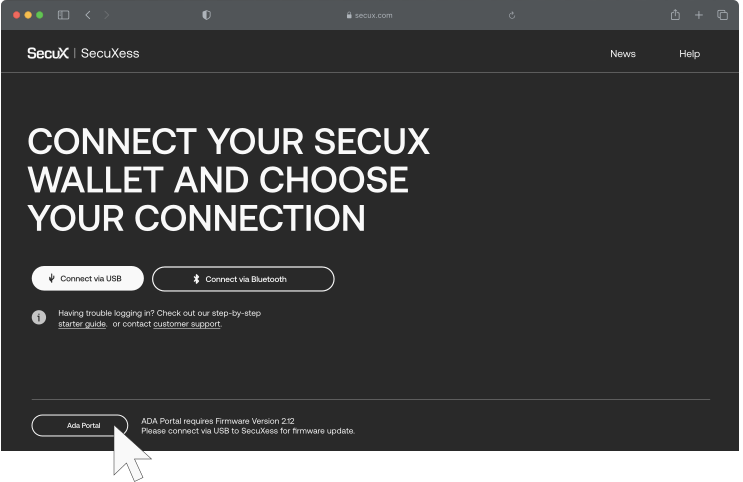
2. Access SecuXess Web Application. Click on the ADA Portal button at the bottom.

3. Unlock your wallet with your PIN.
ada web 1

How to Connect #

1. Connect your device via USB or Bluetooth. If connecting via Bluetooth, make sure the Bluetooth functionality on your wallet and computer/mobile phone is turned ON.

2. Select the connection type.

Ada Portal

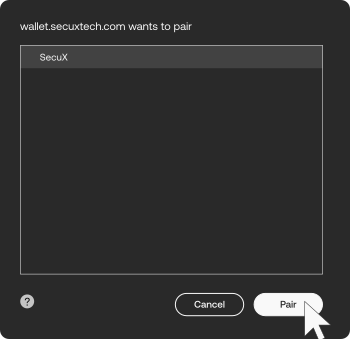
3. Select your wallet.

ada web 3 1

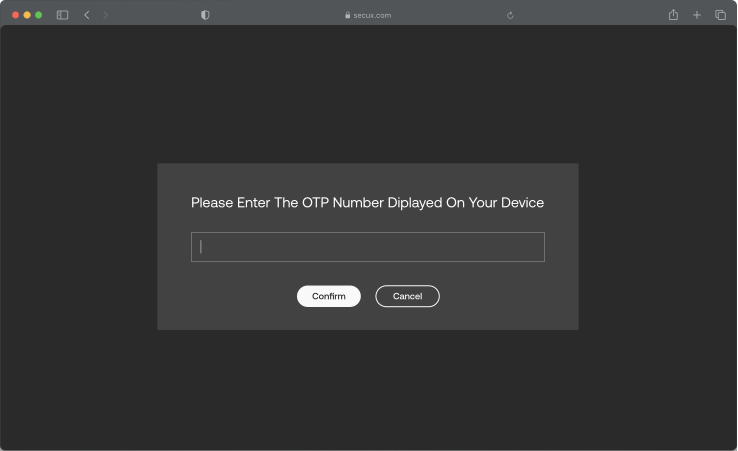
4. If connecting via Bluetooth, enter the 6-digit OTP code that appears on your device.
ada web 4

How to Add an Account #

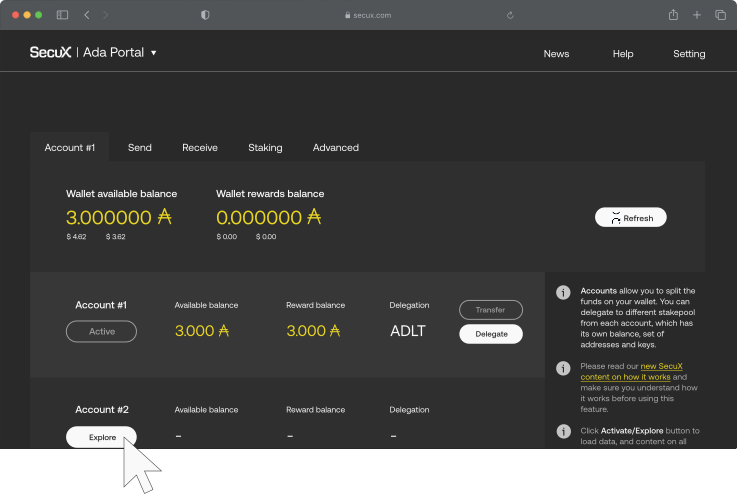
1. An account will be automatically created when you log in for the first time.

2. You can also click on Explore to create a second account.

NOTE: ADA Portal is only accessible via SecuXess Web Application and your ADA portfolio will NOT show up on SecuX wallet.
ada web 5

How to Get Your Receiving Address #

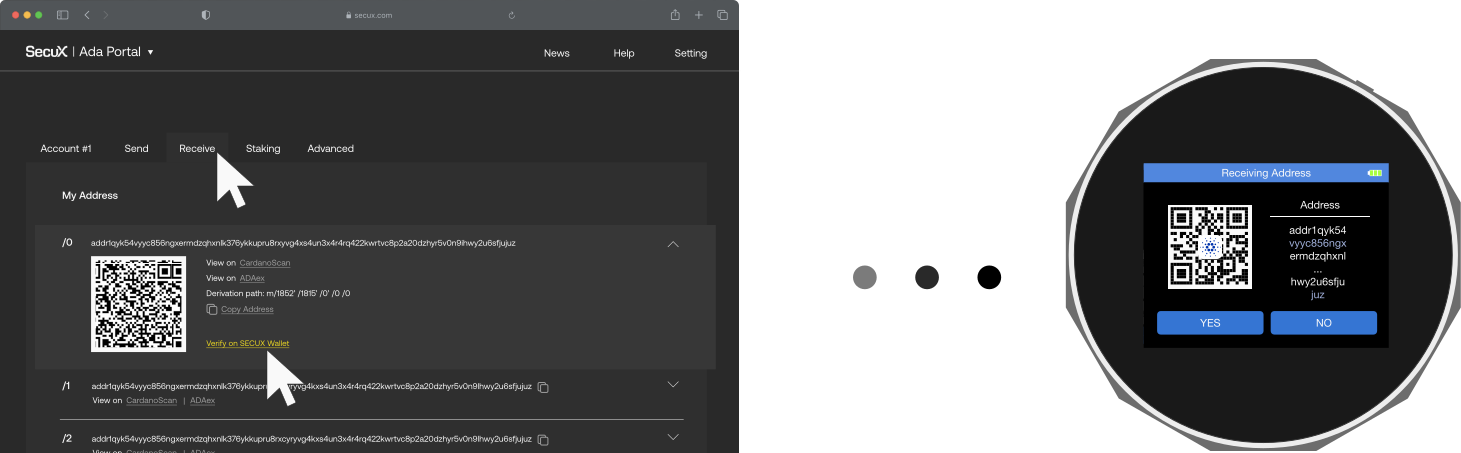
1. Click on the Receive tab.

2. The system will provide 20 addresses. You can choose any 1.

3. Click on Verify on SecuX Wallet.

4. The address you have chosen will be available to view and verify on your SecuX wallet.
ada web 6

How to Send #

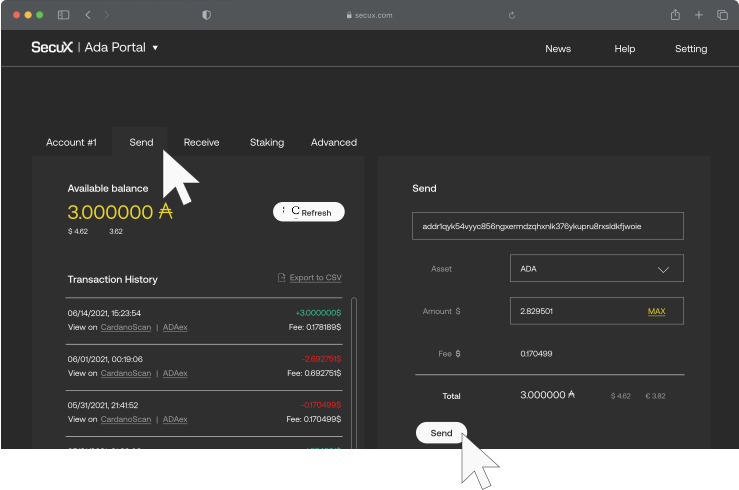
1. Enter the recipient’s address, type of asset, and the amount. The system will calculate the fees for you automatically.

2. Click Send.
ada web 7

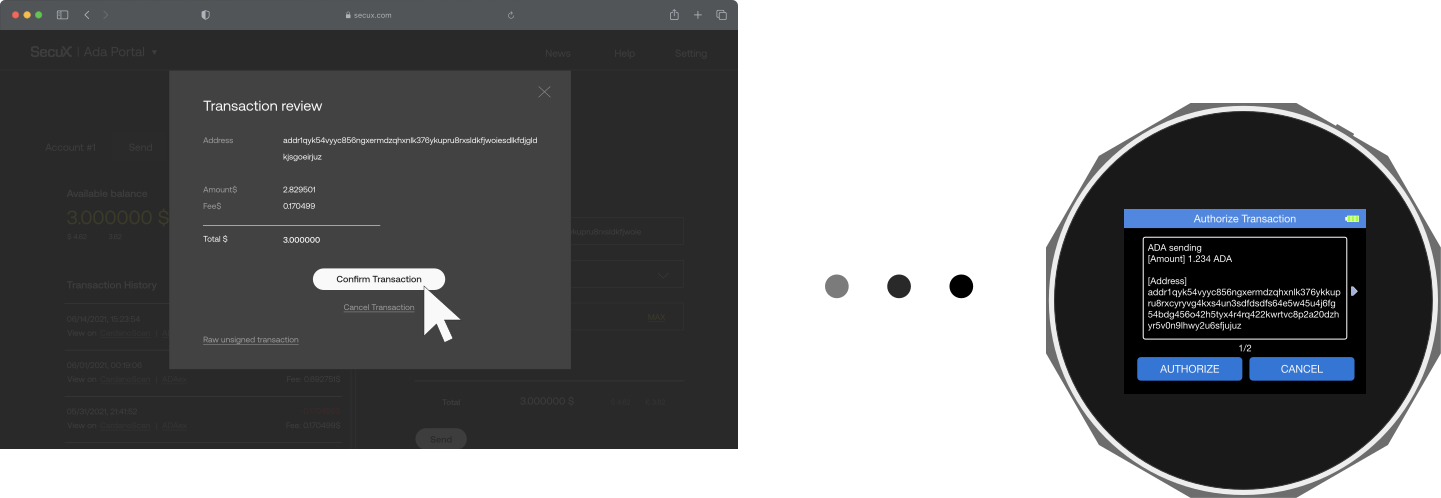
3. Verify all of the information you have entered is correct and then click Confirm Transaction.

4. Verify and authorize the transaction on your SecuX wallet.

NOTE: Once the transaction is authorized on the SecuX wallet, you will be unable to modify it.
ada web 8

How to Stake #

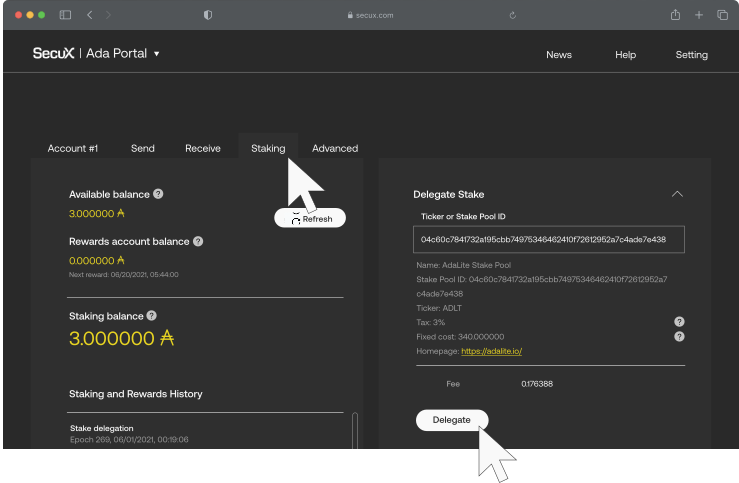
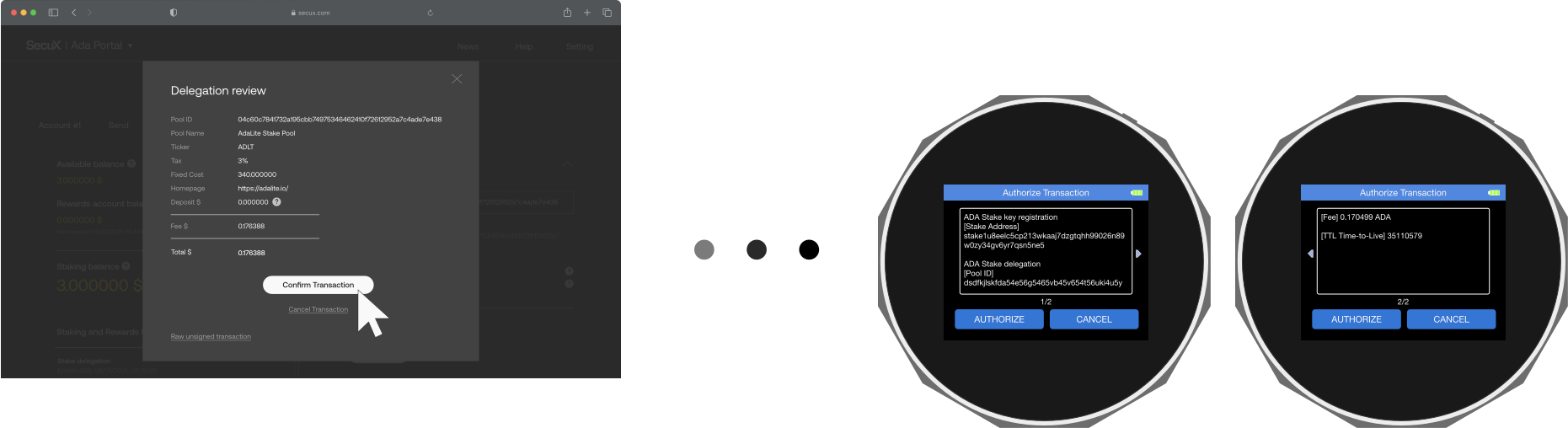
1. Under the Staking tab, enter the Ticker or Stake Pool ID. The system will automatically calculate the transaction fee for you.

2. Click on Delegate.
ada web 9

3. Verify all of the information you have entered is correct and then click Confirm Transaction.

4. Verify and authorize the transaction on your SecuX wallet.

NOTE: Once the transaction is authorized on the SecuX wallet, you will be unable to modify it.
ada web 10

How to Withdraw #

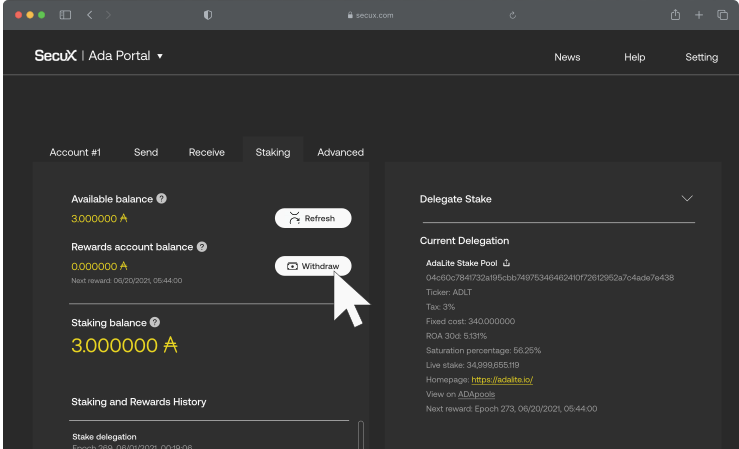
1. Under the Staking tab, click on Withdraw.
ada web 11

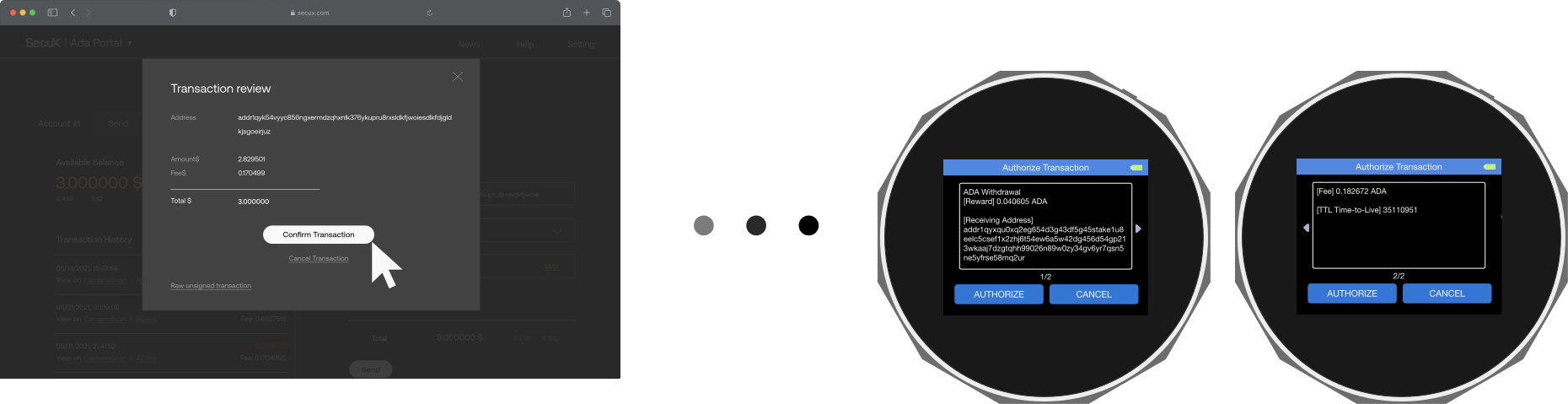
2. Verify the information is correct and then click Confirm Transaction.

3. Verify and authorize the transaction on your SecuX device.

NOTE: Once the transaction is authorized on the SecuX wallet, you will be unable to modify it.
ada web 12

How to Deregister Your Stake Key #

You do NOT need to deregister to delegate to a different stake pool. You can change your delegation preference at any time just by delegating to another stake pool.

Deregistering means this key will no longer receive rewards until you re-register the staking key (usually by delegating to a pool again). Do NOT deregister if you are eligible for rewards in the following epoch.

You should NOT deregister if this staking key is used as a stake pool’s reward account, as this will cause all pool operator rewards to be sent back to the reserve.

1. Under the Staking tab, click on Deregister Stake Key at the bottom right corner of the page.

Ada Portal

2. Please read all of the notices at the top and verify all of the information regarding your staking is correct.

3. Once everything is confirmed, tick the box next to I understand all the above warnings and Confirm Transaction.

Ada Portal

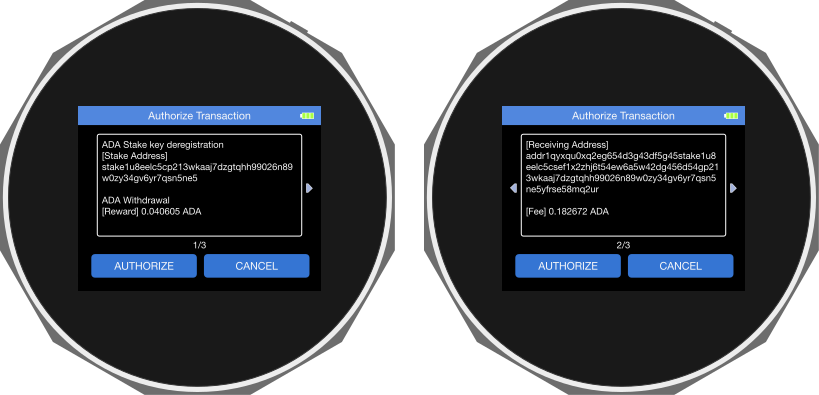
4. Verify and authorize the transaction on your SecuX device.

NOTE: Once the transaction is authorized on the SecuX wallet, you will be unable to modify it.
ada web 15

Cadano, Crypto, firmware update, receive, receiving address, send, staking, withdrawal
What are your Feelings
Share This Article :
  • Facebook
  • Twitter
  • LinkedIn
  • Pinterest
Still stuck? How can we help?

How can we help?

Updated on August 15, 2023
Manage EVM ChainsReceive Funds on Web

Powered by BetterDocs

Table of Contents
  • How to Access ADA Portal
  • How to Connect
  • How to Add an Account
  • How to Get Your Receiving Address
  • How to Send
  • How to Stake
  • How to Withdraw
  • How to Deregister Your Stake Key
SecuX Hardware Wallet

SecuX V20
SecuX W20
SecuX W10
SecuX Nifty
X-SEED Series
Compare Wallets
All Products

Download App
Contact Us
How it works
Blog
Crypto Assets

Payment Solutions

Who we are
Affiliate Partnership
Partners
Become a reseller
News
Media Reviews

Website ToS
Privacy Policy
Application ToS
Shop ToS

    SecuX TwitterSecuX FacebookSecuX InstagramSecuX Telegram

    Products

    SecuX V20

    SecuX W20

    SecuX W10

    SecuX Nifty

    X-SEED Series

    Compare Wallets

    All Products

    Support

    Download App

    Contact Us

    How it works

    Blog

    Crypto Assets

    For Business

    Payment Solutions

    Support

    Download App

    Contact Us

    How it works

    Blog

    Crypto Assets

    For Business

    Payment Solutions

    About

    Who we are

    Affiliate Partnership

    Partners

    Become a reseller

    News

    Media Reviews

    Legal

    Website ToS

    Privacy Policy

    Application ToS

    Shop ToS

    About

    Who we are

    Affiliate Partnership

    Partners

    Become a reseller

    News

    Media Reviews

    Legal

    Website ToS

    Privacy Policy

    Application ToS

    Shop ToS

    SecuX Hardware Wallet

    SecuX TwitterSecuX FacebookSecuX InstagramSecuX Telegram

      SecuX uses cookies to improve your experience. We'll assume you're ok with this, If you agree, welcome to use our website.I agree and close Read Our Policy
      Privacy & Cookies Policy

      Privacy Overview

      This website uses cookies to improve your experience while you navigate through the website. Out of these, the cookies that are categorized as necessary are stored on your browser as they are essential for the working of basic functionalities of the website. We also use third-party cookies that help us analyze and understand how you use this website. These cookies will be stored in your browser only with your consent. You also have the option to opt-out of these cookies. But opting out of some of these cookies may affect your browsing experience.
      Necessary
      Always Enabled
      Necessary cookies are absolutely essential for the website to function properly. These cookies ensure basic functionalities and security features of the website, anonymously.
      CookieDurationDescription
      cookielawinfo-checkbox-analytics11 monthsThis cookie is set by GDPR Cookie Consent plugin. The cookie is used to store the user consent for the cookies in the category "Analytics".
      cookielawinfo-checkbox-functional11 monthsThe cookie is set by GDPR cookie consent to record the user consent for the cookies in the category "Functional".
      cookielawinfo-checkbox-necessary11 monthsThis cookie is set by GDPR Cookie Consent plugin. The cookies is used to store the user consent for the cookies in the category "Necessary".
      cookielawinfo-checkbox-others11 monthsThis cookie is set by GDPR Cookie Consent plugin. The cookie is used to store the user consent for the cookies in the category "Other.
      cookielawinfo-checkbox-performance11 monthsThis cookie is set by GDPR Cookie Consent plugin. The cookie is used to store the user consent for the cookies in the category "Performance".
      viewed_cookie_policy11 monthsThe cookie is set by the GDPR Cookie Consent plugin and is used to store whether or not user has consented to the use of cookies. It does not store any personal data.
      Functional
      Functional cookies help to perform certain functionalities like sharing the content of the website on social media platforms, collect feedbacks, and other third-party features.
      Performance
      Performance cookies are used to understand and analyze the key performance indexes of the website which helps in delivering a better user experience for the visitors.
      Analytics
      Analytical cookies are used to understand how visitors interact with the website. These cookies help provide information on metrics the number of visitors, bounce rate, traffic source, etc.
      Advertisement
      Advertisement cookies are used to provide visitors with relevant ads and marketing campaigns. These cookies track visitors across websites and collect information to provide customized ads.
      Others
      Other uncategorized cookies are those that are being analyzed and have not been classified into a category as yet.
      SAVE & ACCEPT